
You may have been directed by us or your hosting provider to update your incoming and outgoing email server settings. This guide walks you through how to do this in Apple Mail on iOS (e.g. iPhone or iPad) for an existing account that has already been added to Mail.
Guide
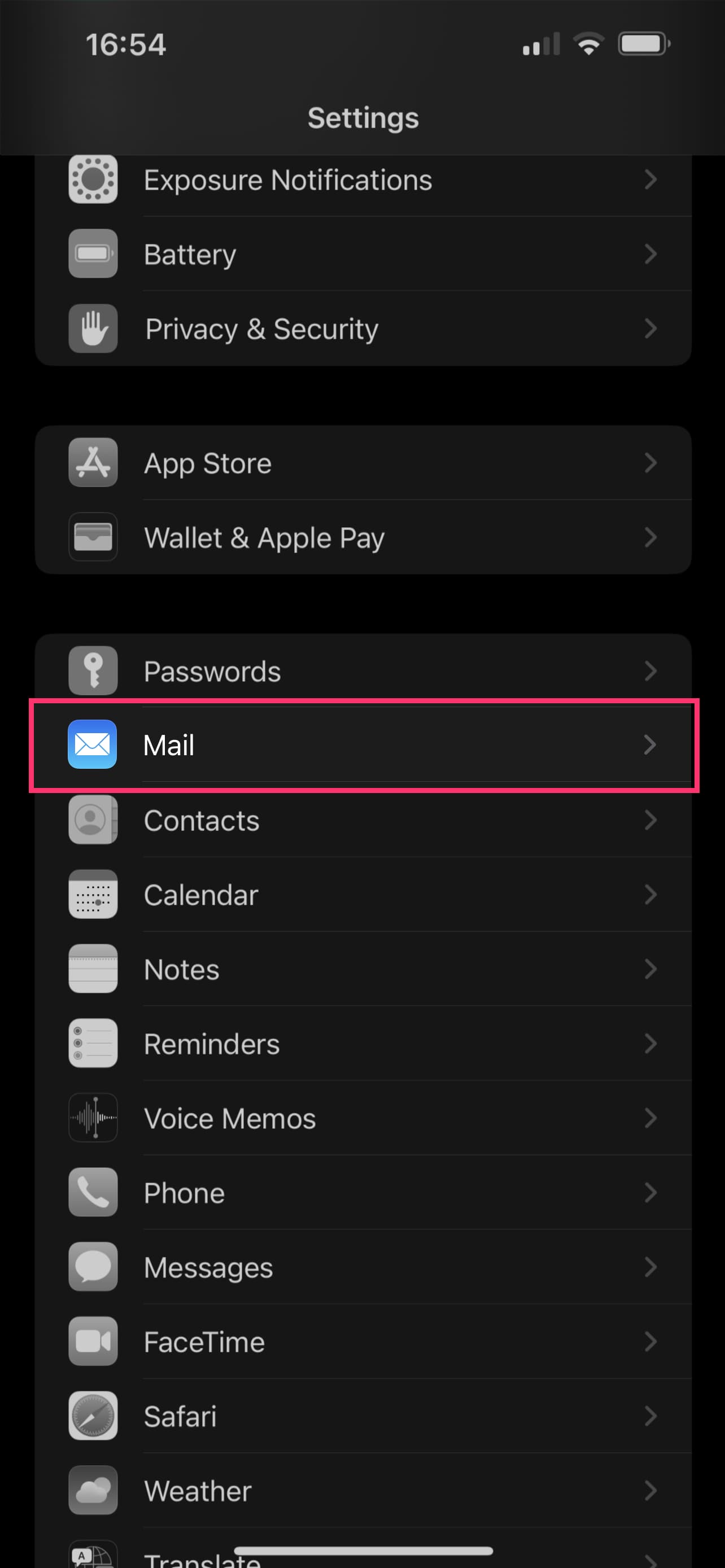
Step 1. Open your device "Settings" and tap on "Mail":
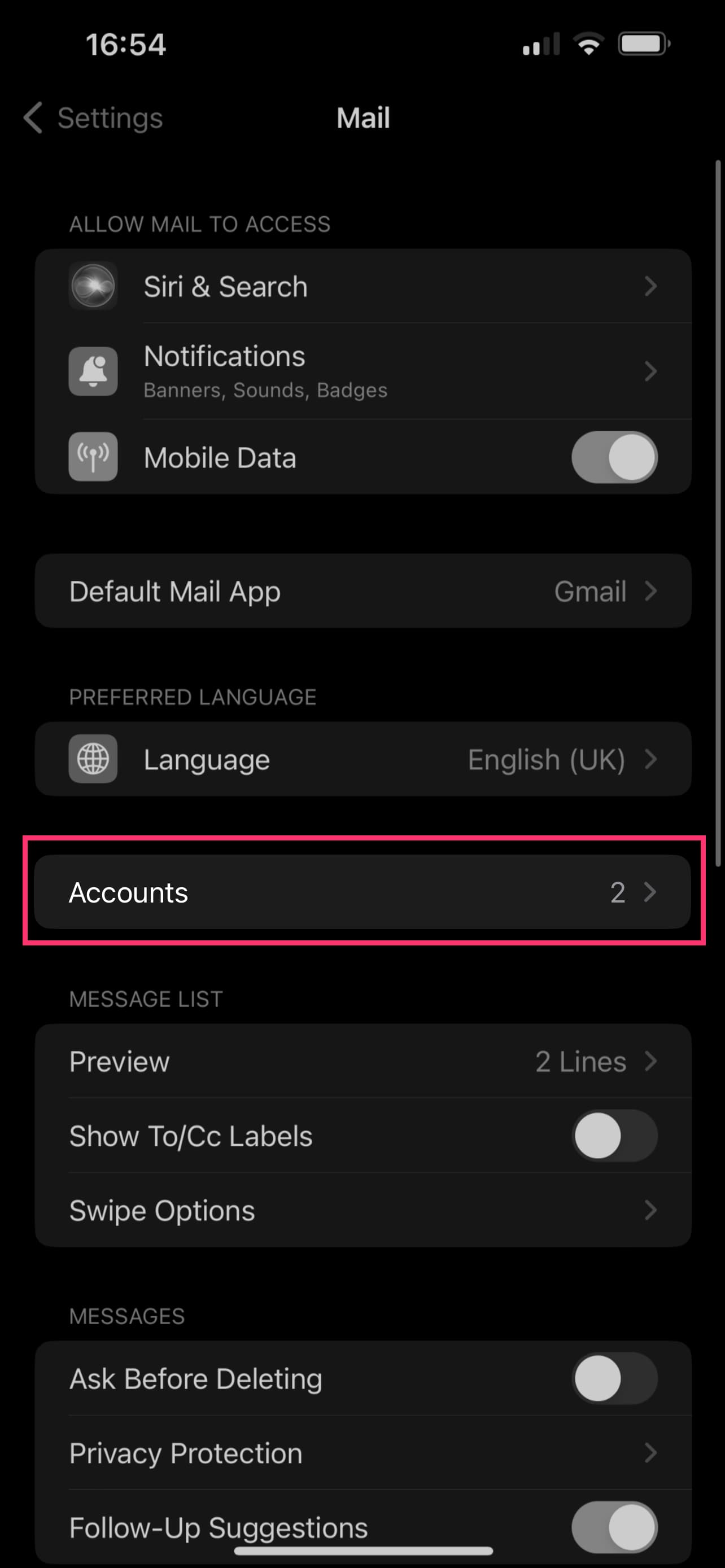
Step 2. Tap "Accounts":
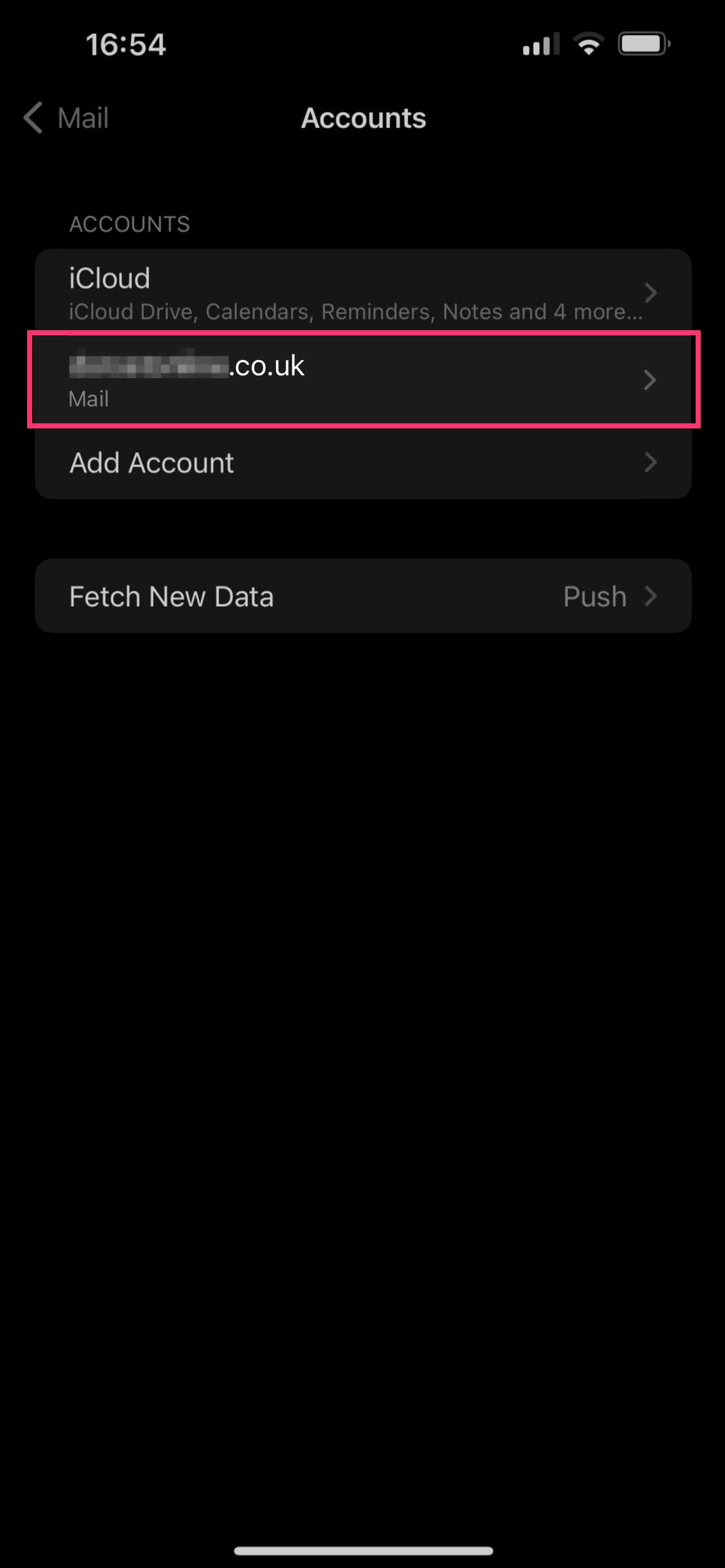
Step 3. Tap the account you would like to edit:
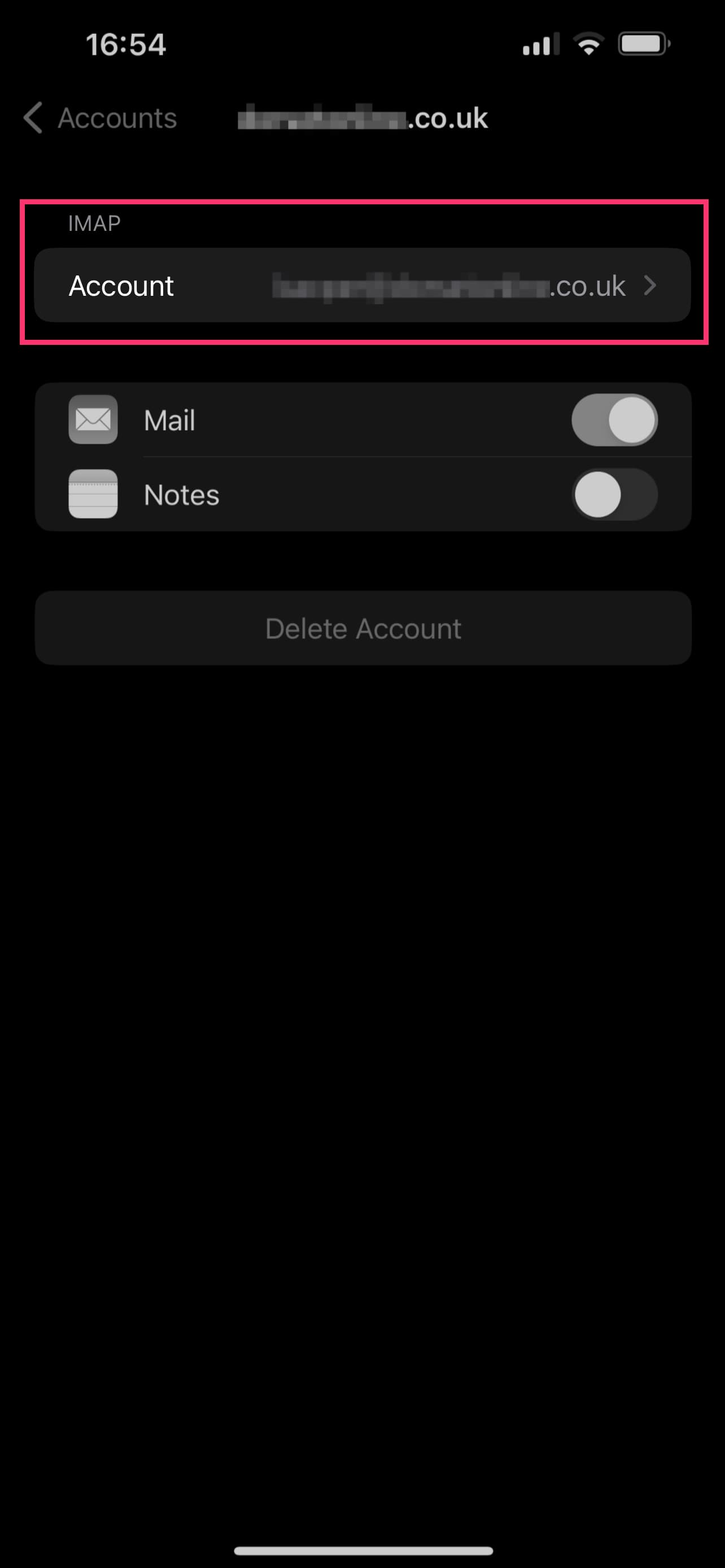
Step 4. Tap the account / username under the "IMAP" heading:
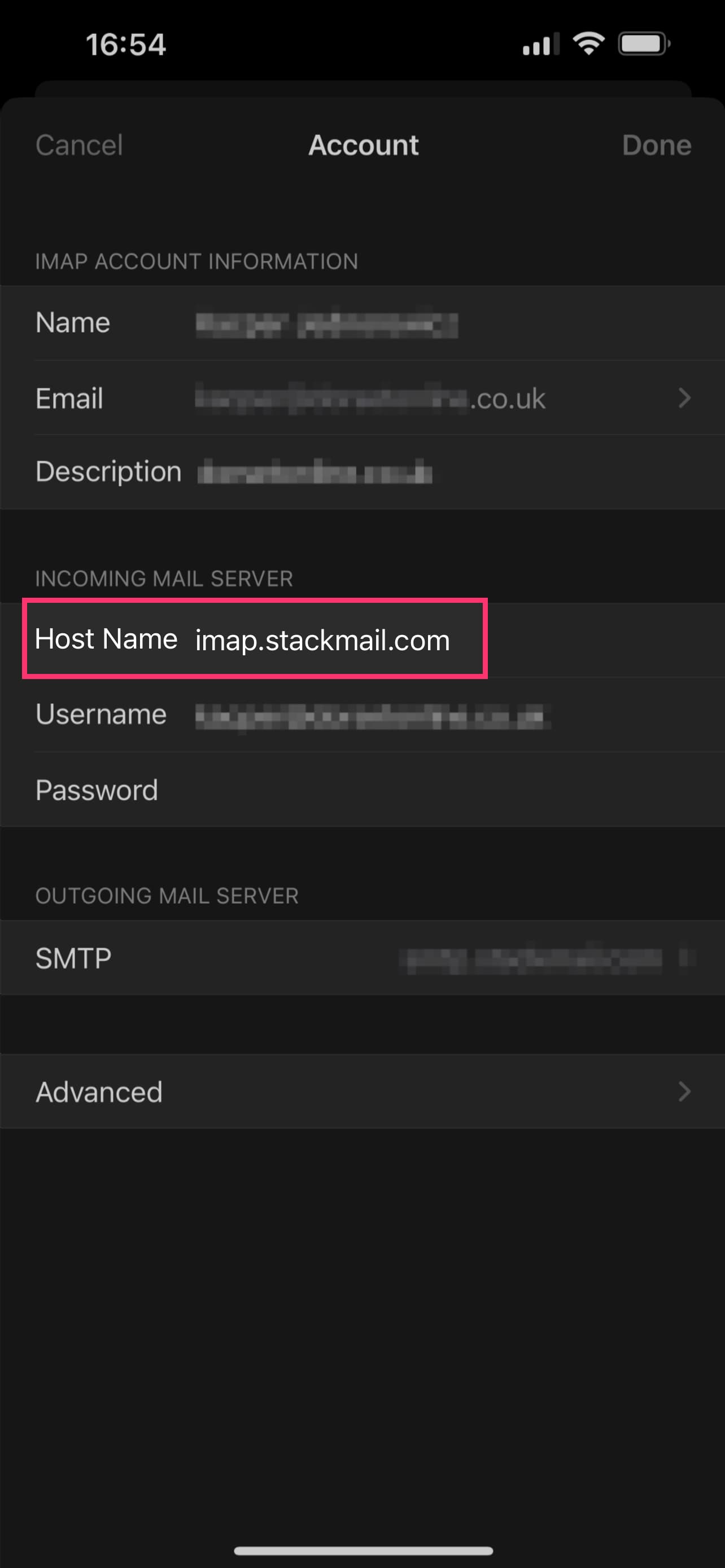
Step 5. Change the "Host name" field. This is where you remove the old hostname and paste the new incoming email server hostname:
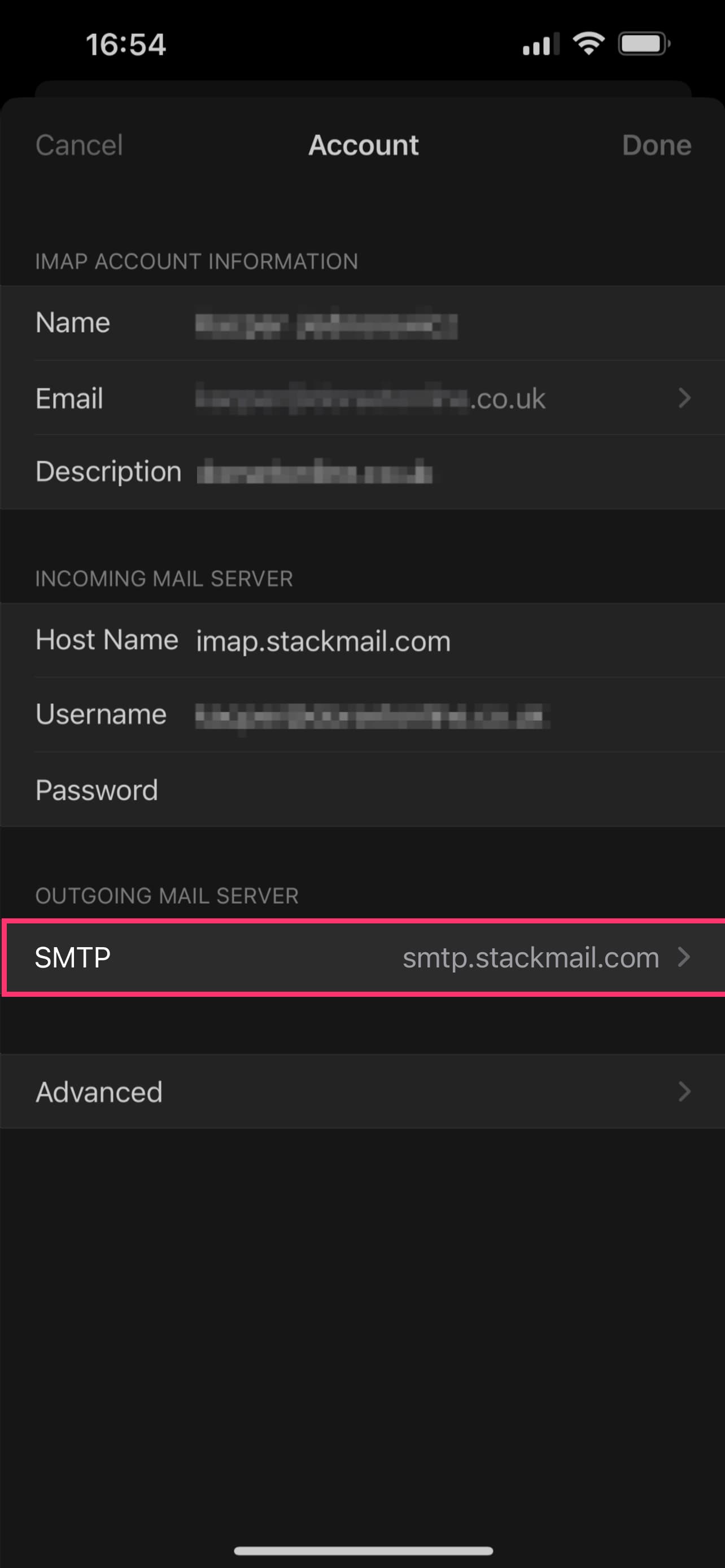
Step 6. The outgoing email server hostname is on a different screen. To get there, tap "SMTP" under "Ouitgoing Mail Server":
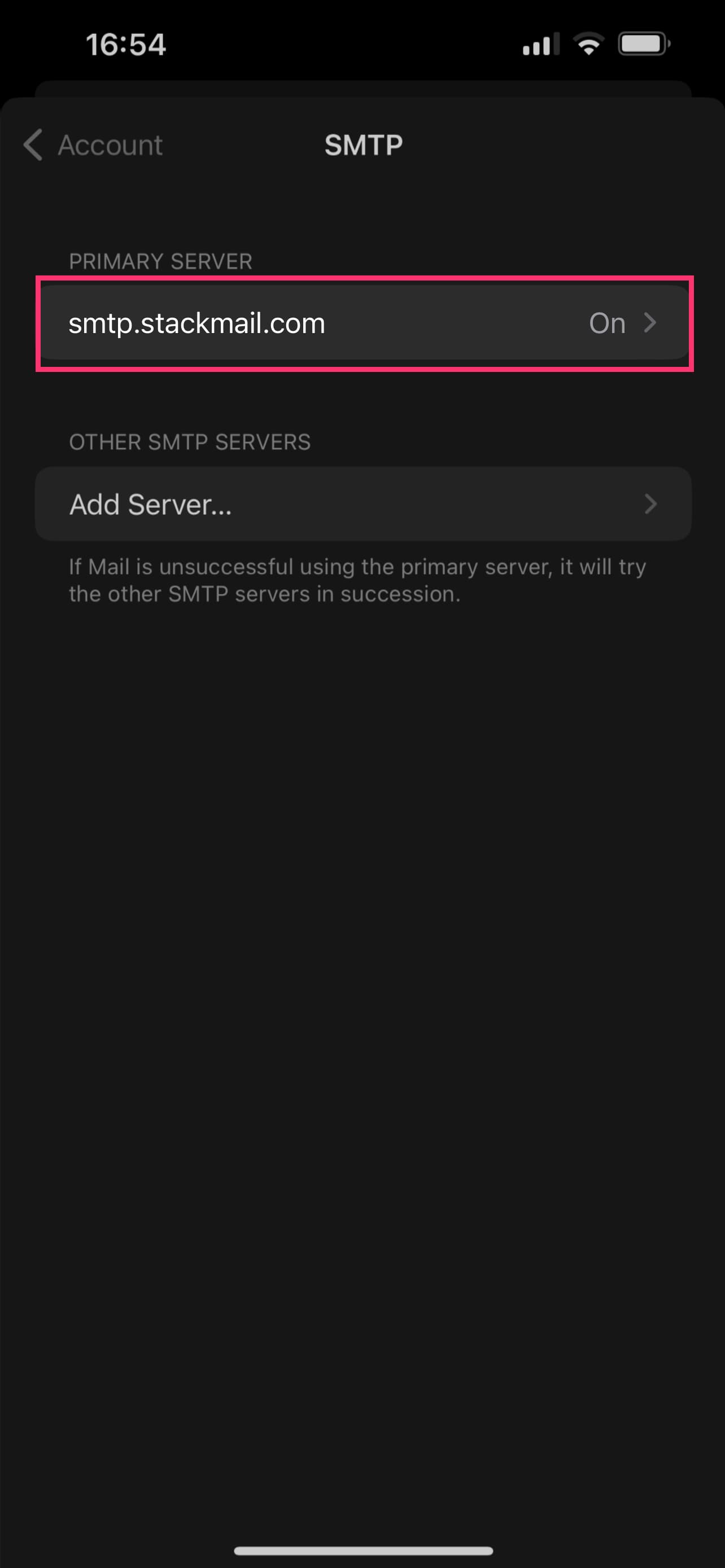
Step 7. Then tap the outgoing mail server hostname under the "Primary Server" heading:
Step 8. Change the "Host name" field. This is where you remove the old hostname and paste the new outgoing email server hostname:
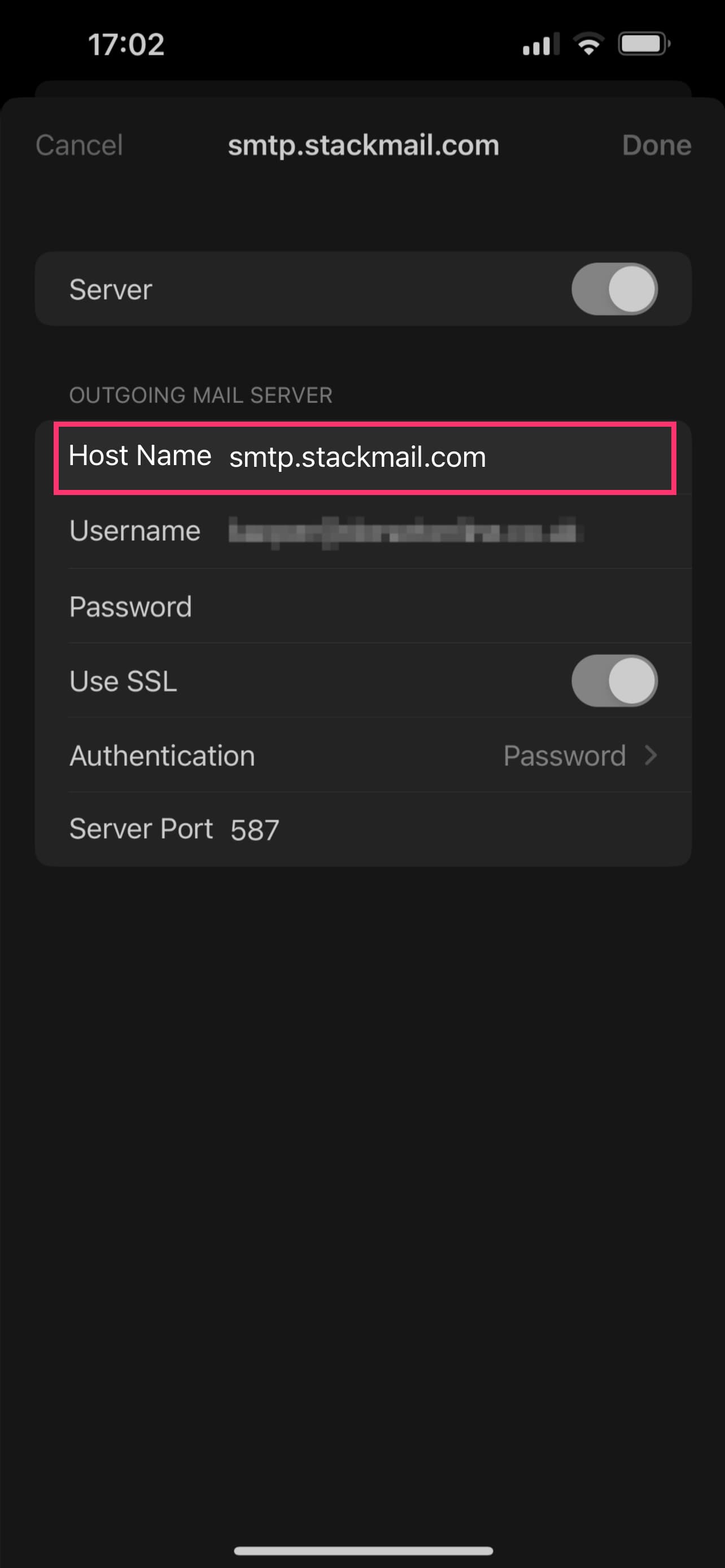
Step 9. Tap "Done" in the top right corner of the screen to save the settings.
If you have any issues, open a new ticket here.
